Getting started
Boot VoluSys, take a quick tour of the desktop, and know what to do when something goes wrong.
1. Boot it#
The quickest way to start is QEMU with UEFI firmware. From the repository root on Windows:
python build.py
.\run.ps1
See Download for QEMU commands on Linux and macOS and for booting a real PC from a FAT32 USB stick.
Choosing a resolution#
The loader reads VOLUSYS/CONFIG.TXT on the EFI partition and picks the closest mode the firmware’s Graphics Output Protocol offers:
# VoluSys boot configuration
resolution=1920x1080
2. Tour the desktop#
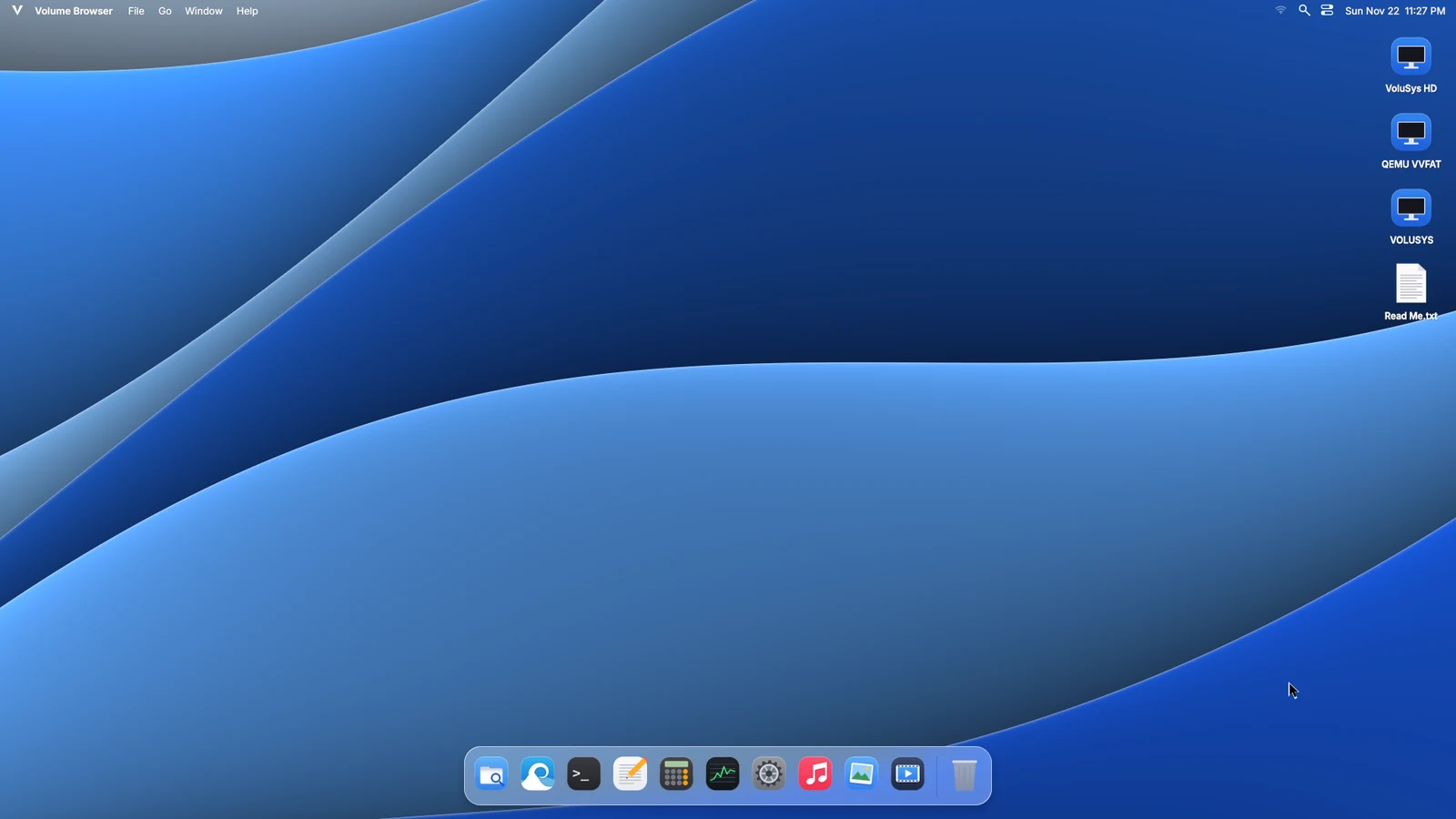
- Menu bar (top): the V menu, then the active app’s menus. On the right are network status, Lighthouse, Helm, and the date and time.
- Tray (bottom): click an icon to open its app. Icons magnify under the pointer, and a dot marks apps that are running.
- Helm: network, dark mode, glass level, Tray options, sound, Now Playing, and sliders for glass refraction and blur.
- Lighthouse: press ⌘ Space to find apps and files.
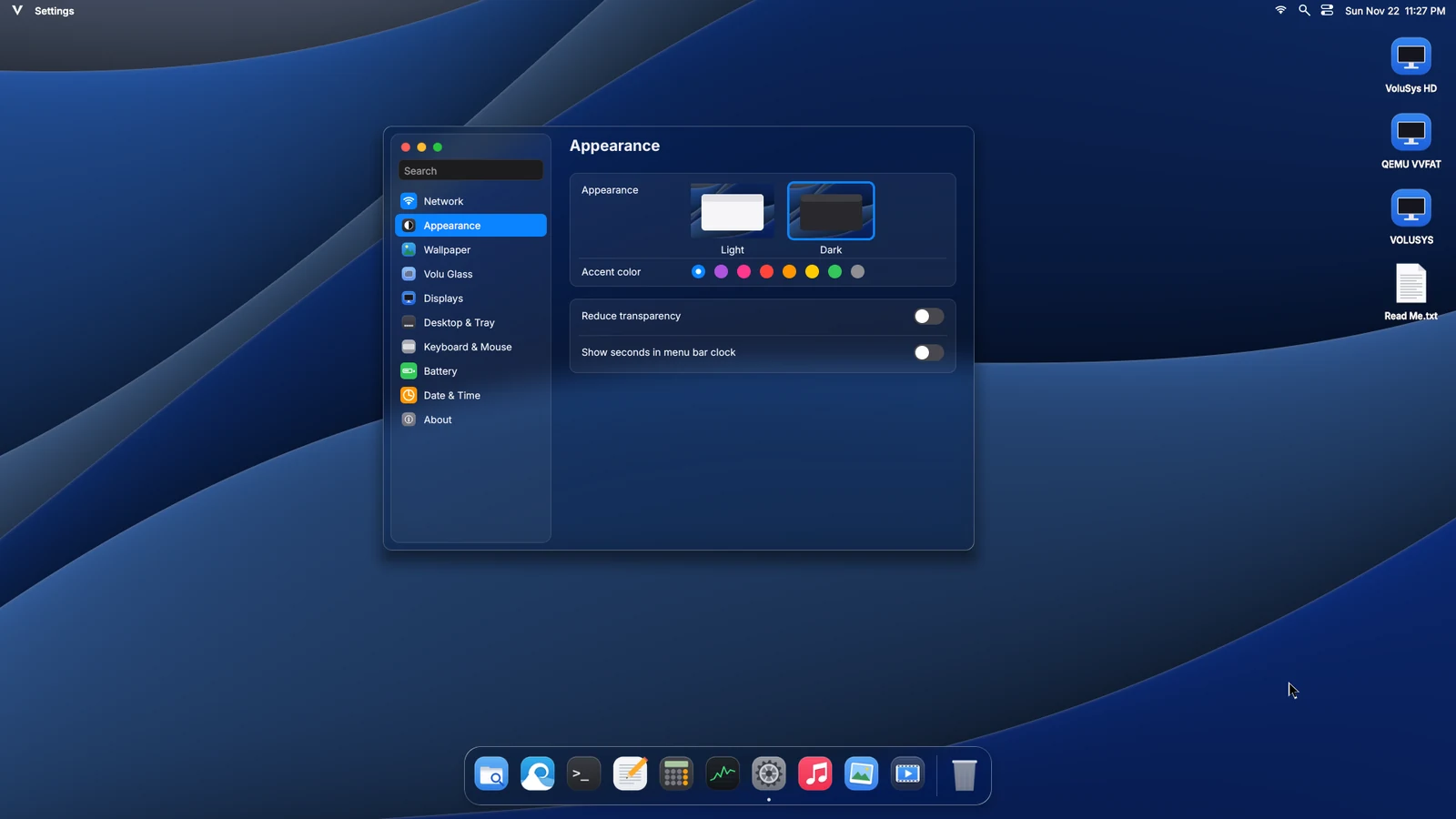
- Settings: network, appearance (light or dark, eight accent colours), wallpaper, glass, displays, desktop & Tray, keyboard & mouse, and date & time.
On a PC keyboard, both Ctrl and the Windows key act as ⌘ (Command). See Keyboard shortcuts.
3. Go online#
With an e1000 network card (the default in run.ps1), VoluSys gets an address over DHCP at boot. Open Tide from the Tray and type an address, or try the network commands in Terminal:
ifconfig
ping 1.1.1.1
nslookup volu.systems
curl -I https://en.wikipedia.org/
4. Make it yours#
In Settings ▸ Appearance, choose light or dark and an accent colour. Wallpaper offers the folded-sheet wallpapers (Blue and Sand) and several gradients. Glass exposes the material itself: blur, refraction, frost, dispersion and specular rim. Your settings are saved automatically.
Troubleshooting
| Symptom | What to try |
|---|---|
| The firmware finds no bootable device | Make sure the stick is FAT32 and contains EFI/BOOT/BOOTX64.EFI. Choose the UEFI entry for the stick, and turn off Secure Boot and CSM/legacy boot. |
| The screen goes black after the loader | Try a smaller resolution= in CONFIG.TXT. In QEMU, check build/serial.log; the kernel logs every boot step there. |
| No network | Wired Intel and Realtek cards and virtio-net are supported; Wi-Fi isn’t yet. In QEMU, use -nic user,model=e1000. |
| The mouse doesn’t move or is offset | In QEMU, keep the default PS/2 and vmmouse setup, or use .\run.ps1 -Usb for a USB tablet. |
| No sound | Add a sound device, for example .\run.ps1 -Audio hda -AudioDriver dsound. |